WordPress guide
LiteSpeed Cache for WordPress: How to Configure It
In short
Install the LiteSpeed Cache plugin, turn caching on, leave logged-in users uncached, keep the default cache lifetimes, turn on image optimisation and lazy loading, and add CSS and JavaScript options one at a time, testing after each. Most broken LiteSpeed sites have too many settings switched on at once.
The LiteSpeed Cache plugin (LSCache) works with the LiteSpeed web server, so a cached page is served by the server before WordPress or PHP loads at all. Every Gander Web hosting plan runs LiteSpeed.
How it works
The first visitor to a page gets it built by WordPress as normal, and LiteSpeed stores the result. Later visitors get the stored copy straight from the server until the page changes or the copy expires. That cuts server load and Time to First Byte. The plugin tells the server what to cache and when to throw it away.
Cache settings
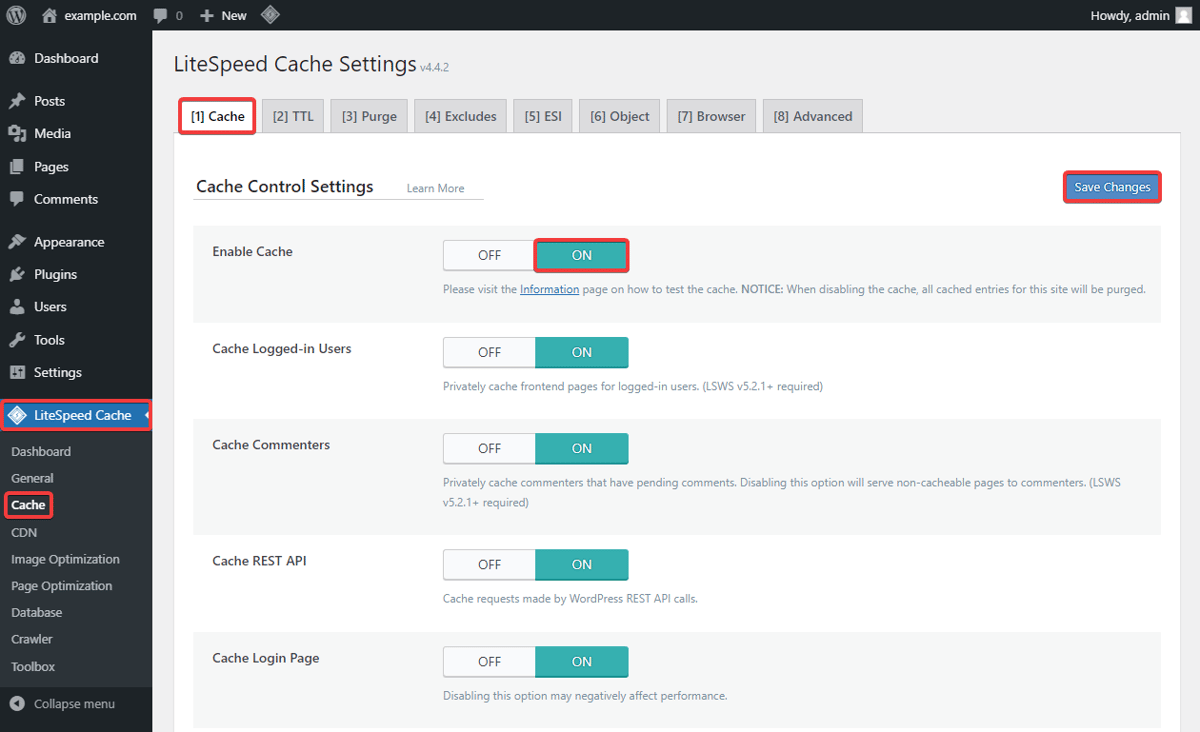
- Enable Cache: On.
- Cache Logged-in Users: Off. Admin sessions, account pages and personalised content need fresh pages.
- Cache Mobile: Off for responsive themes. Turn it on only if your theme sends different HTML to phones.
- Browser Cache: On, so returning visitors reuse images, CSS and JavaScript they've already downloaded.
Cache lifetimes (TTL)
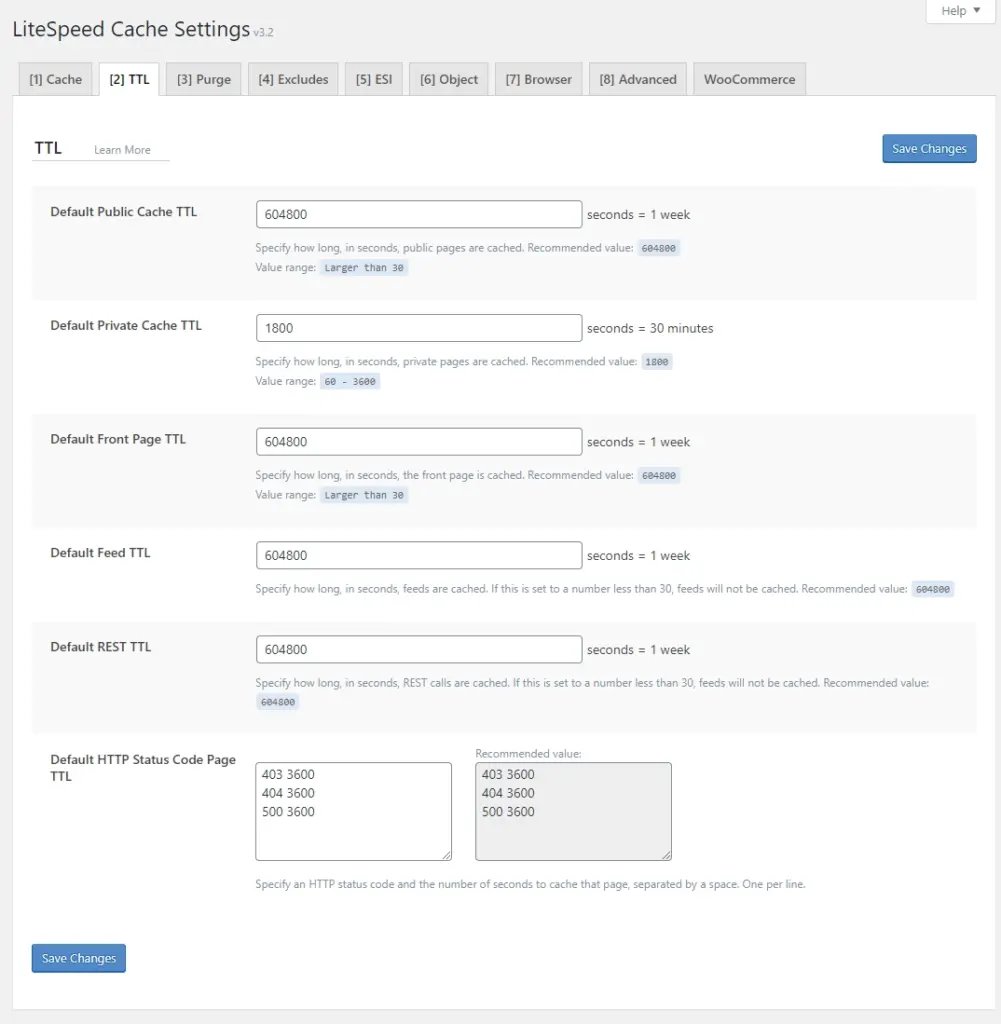
The defaults suit most sites, including a public page lifetime of a week. Publishing or updating a page clears it from the cache anyway, so a long lifetime doesn't mean stale content. Lower it only if pages change without WordPress knowing, such as content pulled in from another system.
Purging
LSCache clears the affected pages when you publish or update content. Under Purge, make sure Purge All On Upgrade is on, so plugin, theme and core updates clear the cache. You should only need to purge everything by hand after a redesign or while troubleshooting.
Image optimisation
LSCache's image optimisation sends images to QUIC.cloud, LiteSpeed's online service, for compression, and can serve WebP versions to browsers that support them. A free monthly allowance covers most small sites. Turn on automatic requests so new uploads are processed in the background.
CSS and JavaScript
Minifying CSS and JavaScript is usually safe. Combining files usually isn't worth it on HTTP/2 or HTTP/3, which load many small files in parallel, and it can make pages slower. Options such as Load CSS Asynchronously and JS Delayed can lift lab scores but can also break layouts and menus, so turn them on one at a time and check the site after each.
Lazy loading and Core Web Vitals
Turn on lazy loading for images and iframes, so content further down the page loads only when it's needed. Exclude your main image at the top of the page (the hero image or logo), because lazy-loading it delays Largest Contentful Paint.
Database clean-up
Clearing post revisions and expired transients once a month is enough. Take a backup first. A more aggressive schedule adds risk for very little gain.
Object caching with Redis or Memcached
Page caching speeds up what visitors see. Object caching speeds up what WordPress does behind the scenes, by keeping the results of database queries for menus, options and post data in memory. It helps most on WooCommerce shops and membership sites, where many pages are personalised and can't be page-cached. If Redis is available on your server, turn it on in the plugin's Object tab.
QUIC.cloud CDN
QUIC.cloud also offers a CDN with a free tier and daily limits, then paid tiers for busy sites. It's optional: a well-configured LiteSpeed server already delivers most of the speed gain. It's worth adding when a site gets a lot of traffic from outside the UK.
Caching WooCommerce with ESI
A page with one personalised part, such as a mini-cart showing the number of items, normally can't be cached. Edge Side Includes (ESI) let LiteSpeed cache the rest of the page and fill in the personalised part separately for each visitor. LSCache's WooCommerce support sets this up when you turn ESI on, so most of a shop can still be served from cache.
Common mistakes
- Running two caching plugins at once.
- Turning on every optimisation in one go.
- Caching logged-in users.
- Changing lifetimes and advanced settings that didn't need changing.
If a plugin breaks after you turn caching on
Plugins that put personalised content into a page, such as quizzes, price calculators or login widgets, can show stale data once page caching is on. Don't turn caching off for the whole site. Add that page's URL or query string to Do Not Cache URIs under the Excludes tab instead. If pages show old content after an update, check Purge All On Upgrade and the auto purge rules: a missed purge is the usual cause.
WordPress hosting on LiteSpeed
Every plan runs LiteSpeed with LSCache, free SSL and daily JetBackup backups, from £2.50 a month.
See hosting plansQuestions
Do I need object caching (Redis) as well as page caching?
Not always. Page caching covers most brochure sites and blogs. Object caching matters most for WooCommerce shops, membership sites and anything with many logged-in users.
Is the QUIC.cloud CDN necessary?
No. LiteSpeed Cache on the server already gives most of the speed gain. QUIC.cloud is worth adding for sites with a lot of traffic from outside the UK.
Why does my page show old content after I update it?
Usually a missed purge. Check Purge All On Upgrade and the auto purge rules in LiteSpeed Cache, and purge by hand after big changes.
Can I use LiteSpeed page caching with WooCommerce?
Yes. With ESI turned on, LSCache caches the rest of the page and fills in personalised parts like the cart separately.
Can I use LiteSpeed Cache with another caching plugin?
Don't. Two page caches fight each other and cause stale or broken pages. Remove the other one before you turn LSCache on.